
Design
Underlay
SummaryLeave Auto on for most work. Underlay sews a holding pass first, under fill and satin.
Underlay is a holding stitch that sews first, under fill and satin. It tacks the fabric so the cover stitches sit still. Auto follows the fabric you picked in Settings. That is the usual choice.
Auto, On, and Off
Underlay sits in the right panel, after Border and Fill.
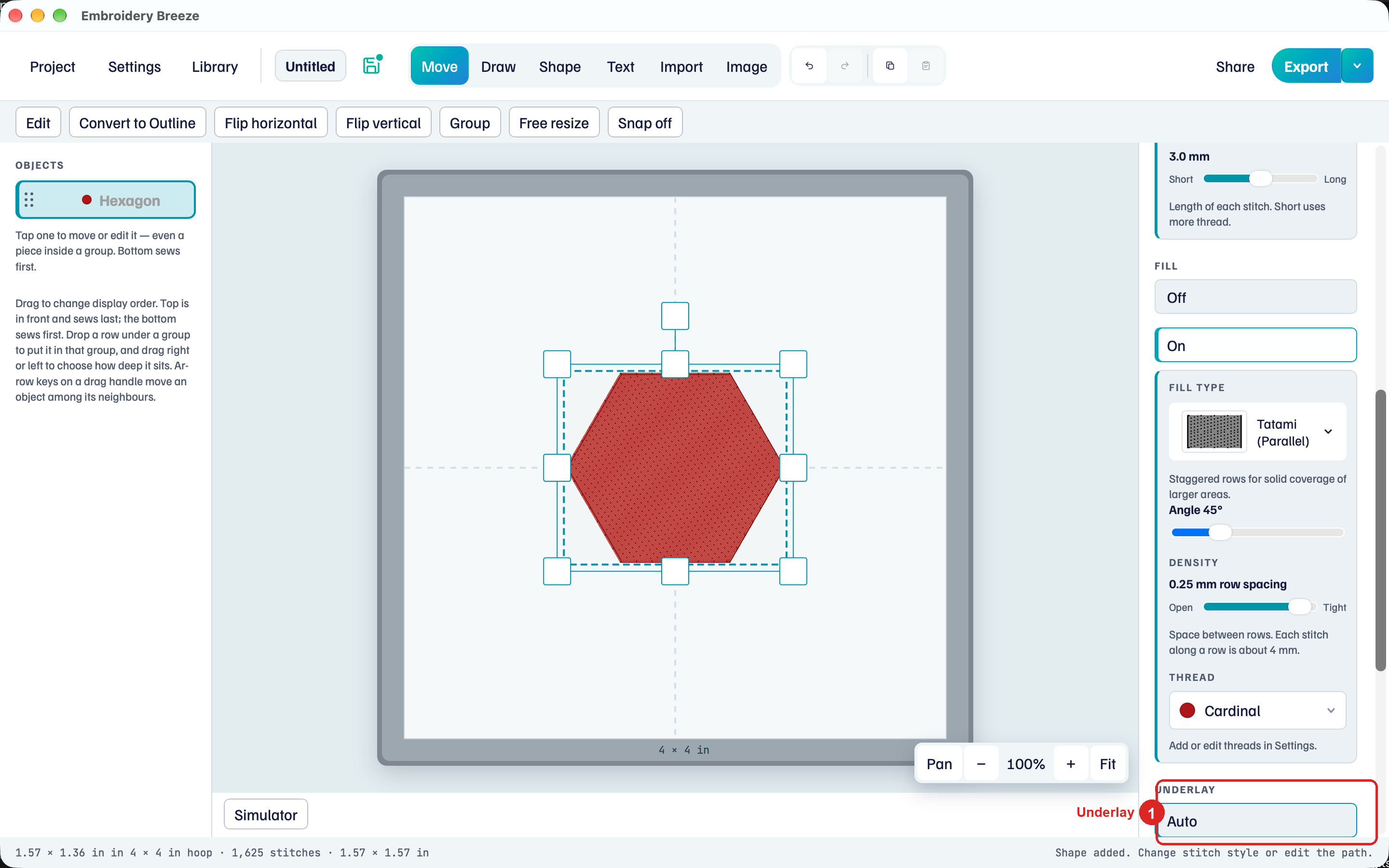
- Select a filled shape, or a satin column.
- Under Underlay, Auto is on for a new object.
- Click Off to skip the holding pass.
- Click On to pick the pass yourself: Center, Edge, or Zigzag.
The hint: Auto sews holding stitches under fill and satin first. Off skips them. Open Simulator and press Play to watch the first pass.
Center is a line through the middle. Edge follows just inside the border. Zigzag is a wider holding field. Use On when this object needs a different pass from the fabric default.
Open and widely spaced fills skip auto underlay. A Fine line with Fill off has nothing for underlay to hold.
Watch it in Simulator
The first stitches you see are underlay, then the cover.
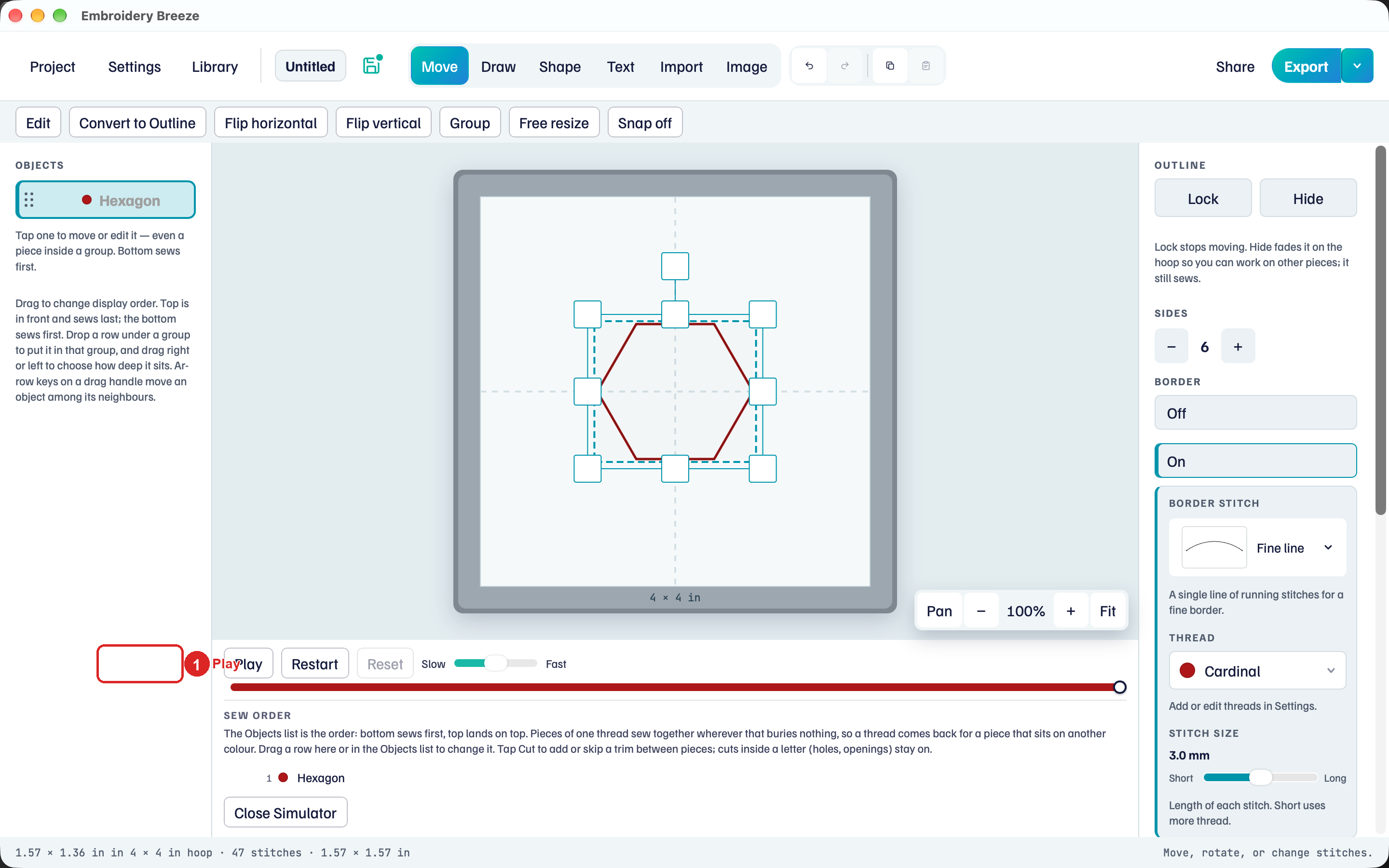
- Click Simulator.
- Click Play, then pause near the start.
- Set Underlay to Off and click Play again. Cover starts immediately.
Fabric in Settings is the default for Auto. Change fabric there for new objects. Change Underlay on this object when this one needs a different pass.
Satin columns are in Satin. Fill types are in Stitches and fills.