
Start
The Objects list
SummaryThe left list is everything on the hoop, and the order the machine sews it.
Objects on the left lists every piece on this hoop. That list is also the sew order.
The bottom of the list sews first. The top of the list is in front on the hoop and sews last, so it covers what is underneath.
Find the list
Here is a hoop with one piece. Objects is the column on the left.
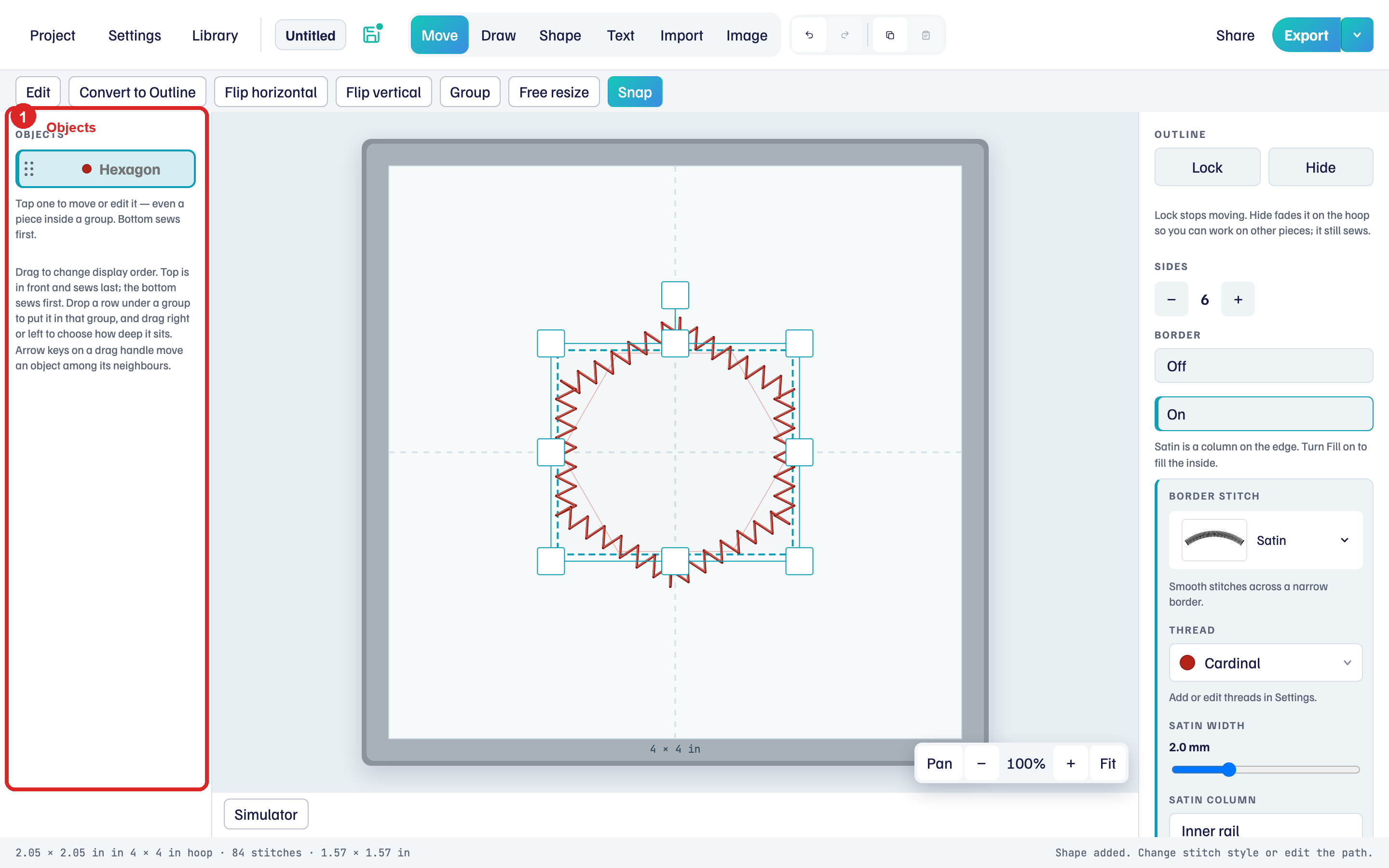
The row shows the thread color and the name (Hexagon here, Oval or Star if that is what you added). A short hint under the list says you can tap a row to move or edit that piece, and that the bottom sews first.
When the hoop is empty, the same column says Nothing in the hoop yet. Add a shape, text, or a machine file.
Simulator shows this same list, with pieces of one thread gathered together wherever that buries nothing. Dragging a row in Simulator moves this list.
Change the order
Add two or three shapes, give them different threads, and overlap them so you can see which sits in front.
- Drag a row. On a touch screen, drag the dotted handle.
- A dashed gap shows where it will land. Release to commit.
- Drag near the top or bottom of the list to scroll. Escape cancels. Undo restores the previous order.
Keyboard: focus a handle, then Up, Down, Home, or End.
With two or more pieces, Select in the Objects header lets you tap several, or drag a box on empty hoop.
Lock and Hide
Select a piece. At the top of properties:
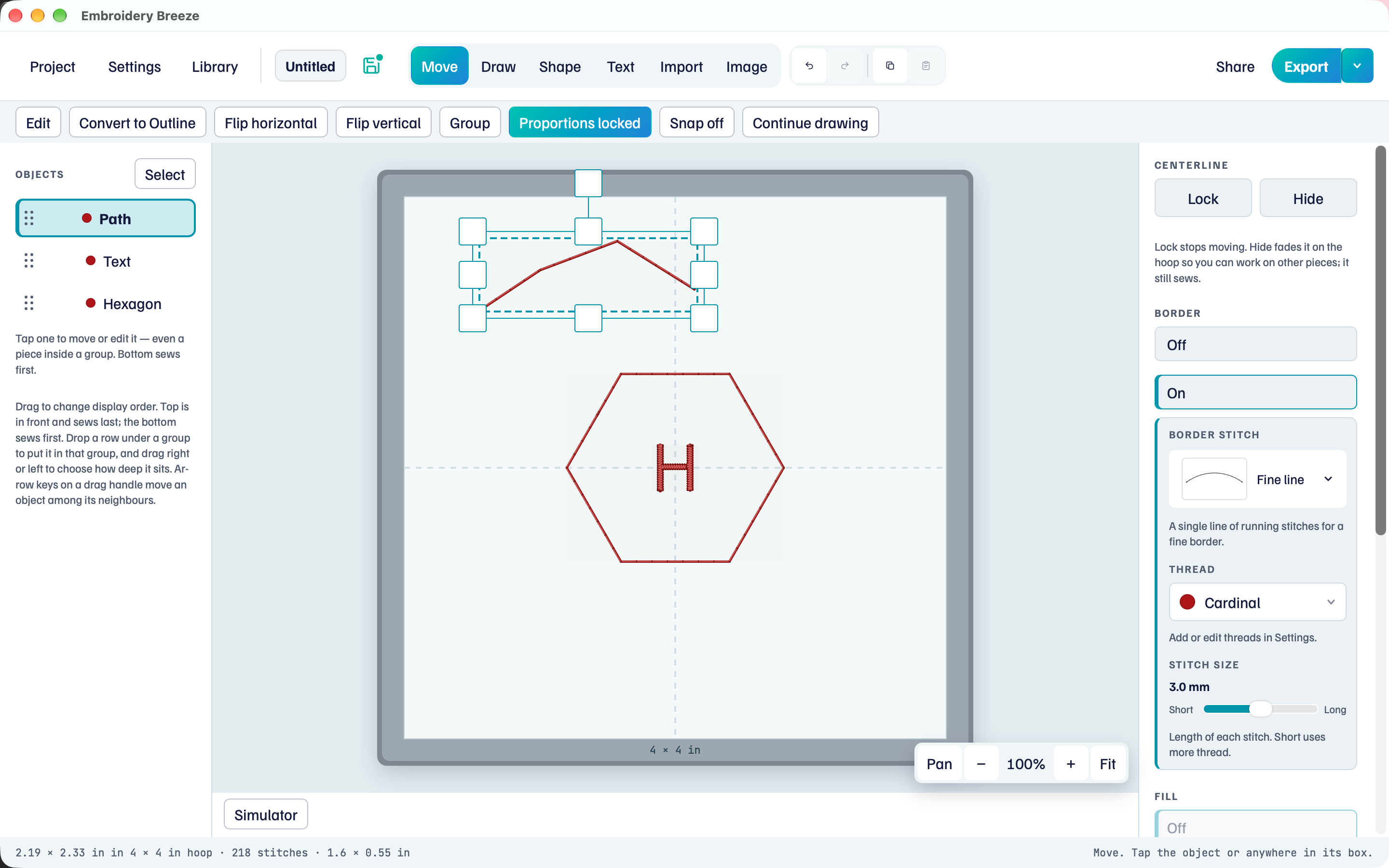
- Lock stops moving, rotating, and resizing. It still sews. Use it when you are happy with placement and do not want to nudge it by accident.
- Hide fades it on the hoop so you can work on other pieces. It still sews. Fading is only for editing.
A Hidden tag appears on the row. Unlock or unhide from the same buttons.
Groups
Group keeps objects together to move and rotate. It does not reorder the list. How to make a group, inspect a member, Ungroup, and Combine is in Groups. Moving and locking a single object is in Select, move, and lock.
Imported designs
A bought machine file sits in this list as Machine file. You can move it, scale it evenly, rotate it, and recolor it. You cannot edit its nodes. Recolor lives in properties when that piece is selected.
Next: Shapes is how ovals, stars, and polygons get their stitches.