
Design
Lettering
SummaryType a word on the hoop with a digitized font or a bought alphabet.
Text places live lettering on this hoop. Computer fonts are not sewn as-is. Pick a digitized font (outline, breaks, and inclinations) or a bought alphabet (frozen letter stitches).
Text sits in the middle of the top bar, between Shape and Import.
Add a word
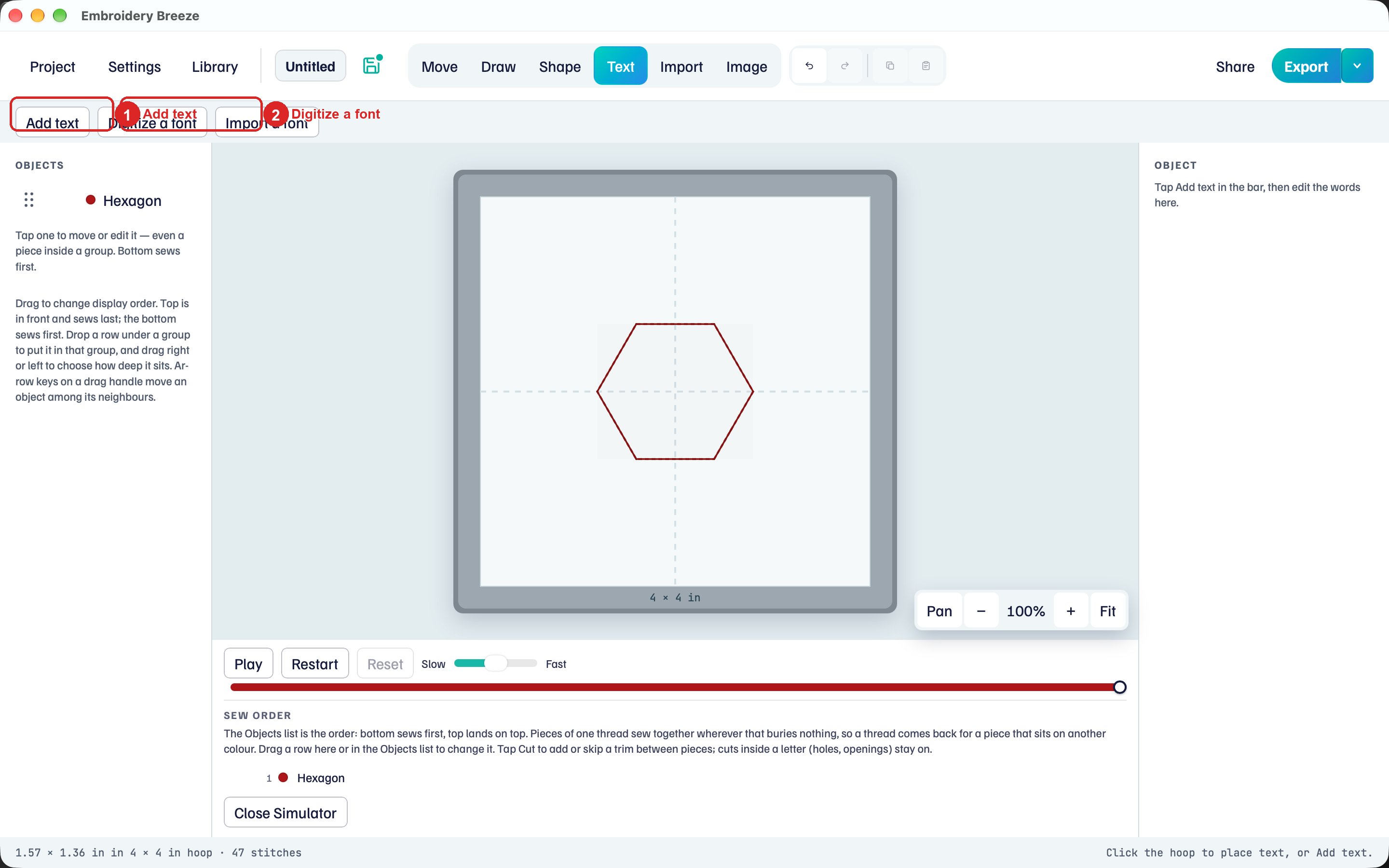
- Click Text.
- Click Add text. A text object lands on the hoop.
- Type in Words on the right. Return starts a new line.
The right panel says: Type with a digitized font or a bought alphabet. Only letters you’ve digitized sew as satin; the rest stay an outline until you digitize them.
If there is no font yet, the notice is: Pick a digitized font or a bought alphabet. Computer fonts are not sewn as-is. Digitize a font opens the font digitizer. Import a font adds one you already have.
Font, size, and spacing
The picker lists Your fonts (badge Digitized) and Bought alphabets (badge Bought). Under the saved name, a digitized font shows the computer font it came from.
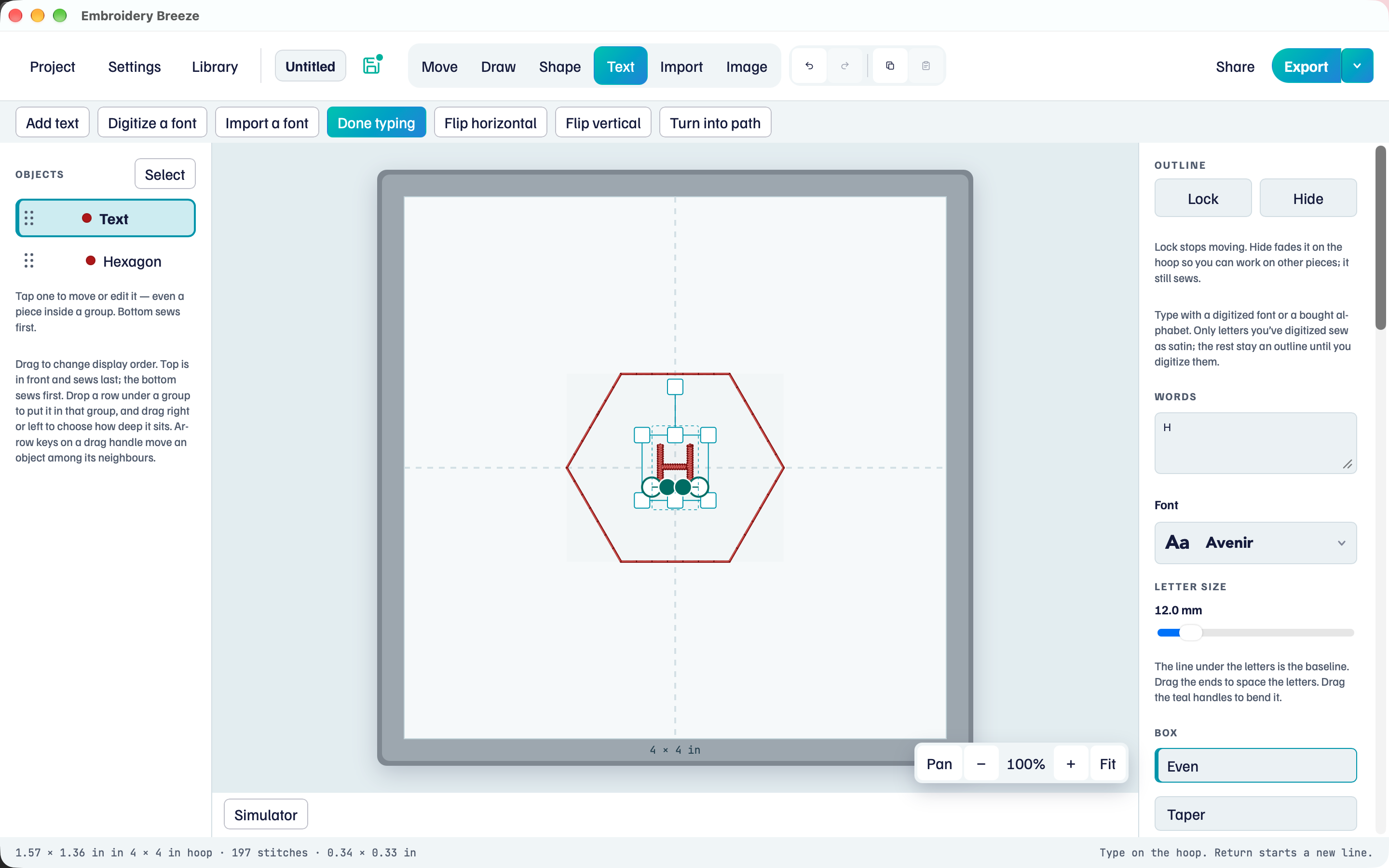
- Open the font picker under Words.
- Choose a digitized font, or a bought alphabet.
- Drag Letter size. The value is in millimetres.
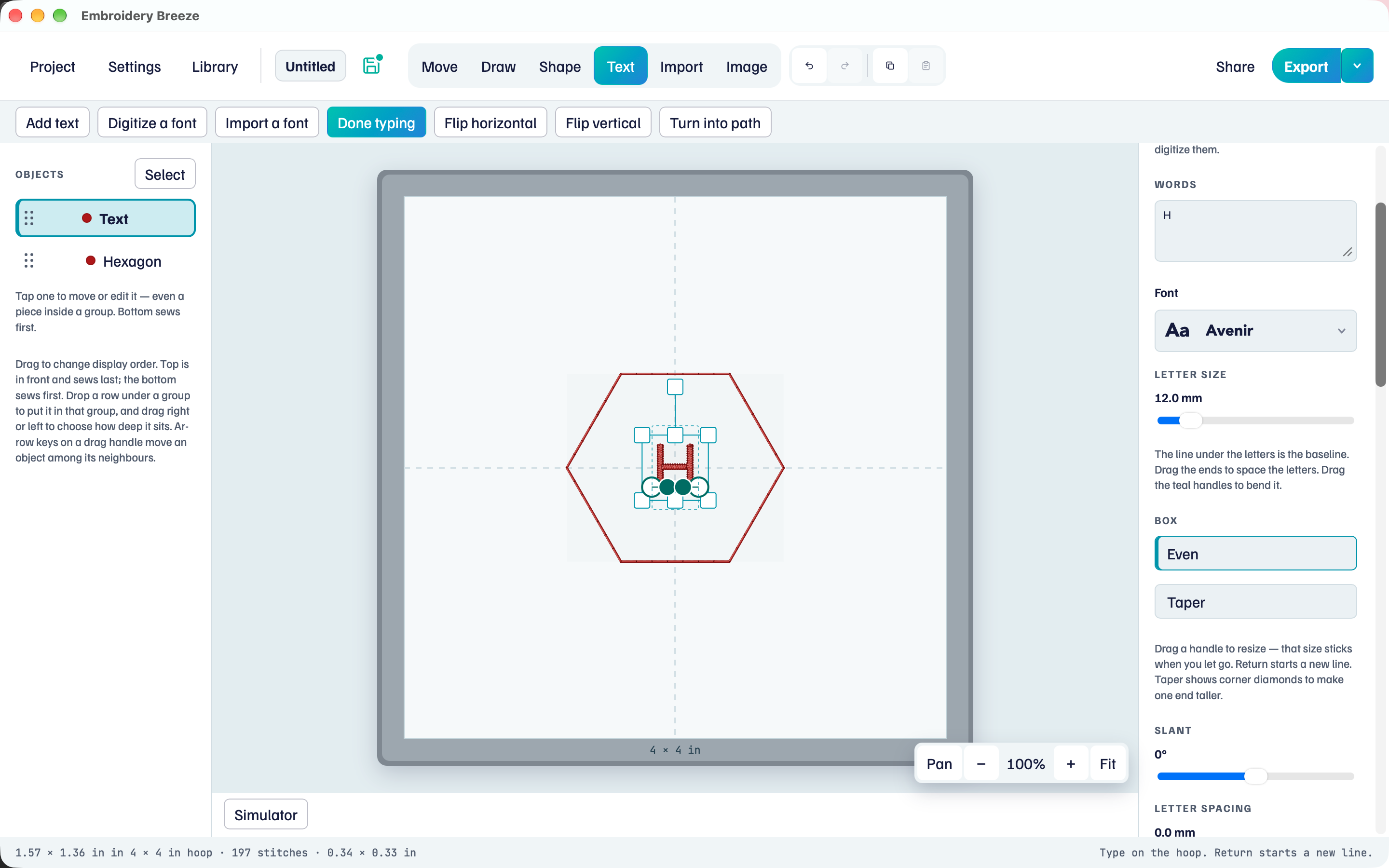
Letter spacing opens or tightens the gaps. Line height opens the space between lines. Slant leans the letters.
The line under the letters is the baseline. Drag the ends to space the letters. Drag the teal handles to bend it.
Once the baseline is tilted or bent, Follow a path shows Start, Center, End and Along the path. They say where the words sit on it when the baseline is longer or shorter than the words. New words keep the Letter spacing you have: they run past the ends rather than squeeze together. Drag an end to fit them again.
A bought alphabet was digitized at a reference height. Scaling far from that size can sew too dense or too sparse. The notice names that height.
Even box and Taper
Box is Even by default. Taper shows corner diamonds so you can pinch one end of the word.
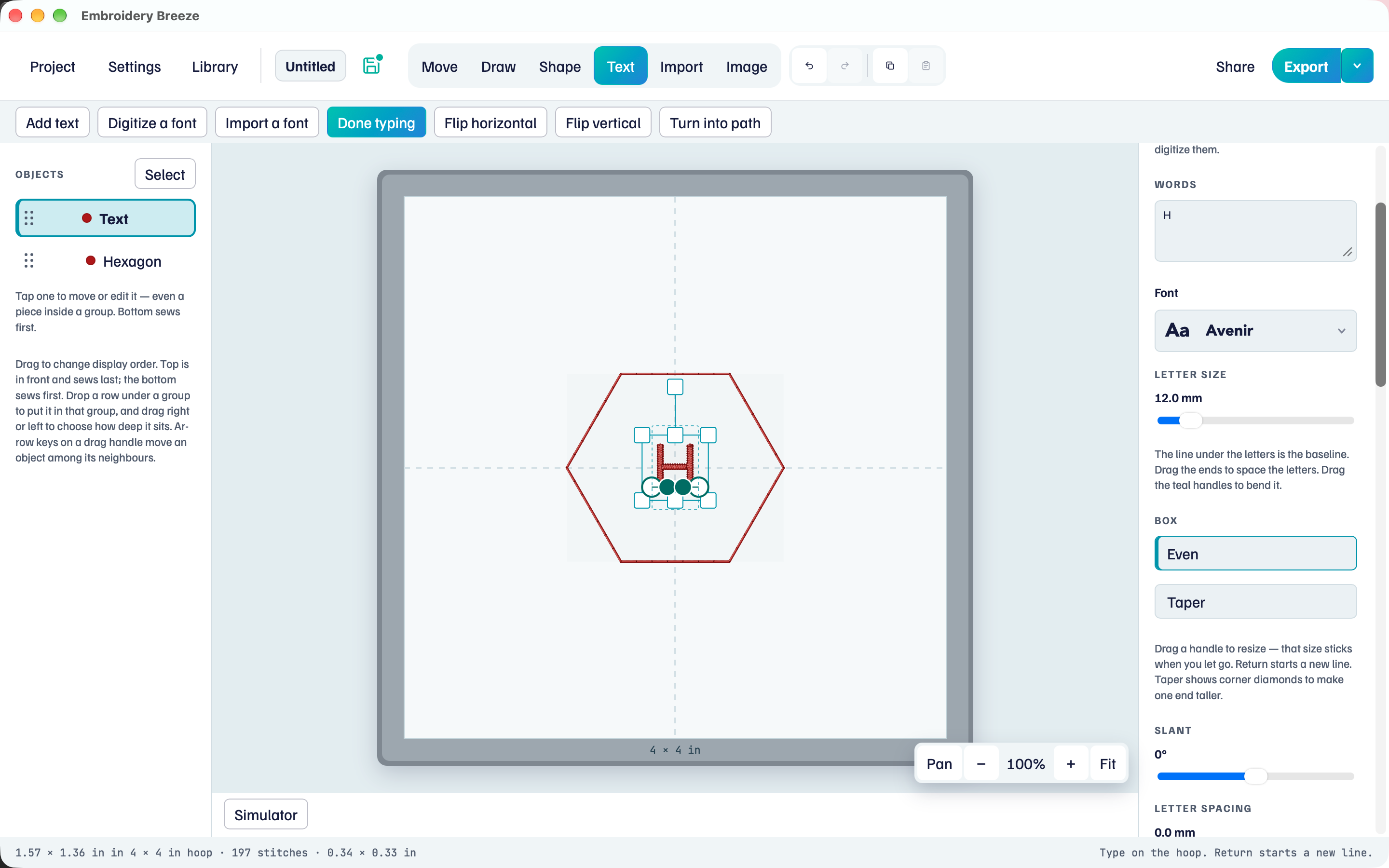
- Under Box, click Taper.
- Drag a corner diamond.
Return in Words still starts a new line.
Stitches on digitized letters
Digitized letters use the same Border and Fill as a shape. Letter connections sits under Underlay.
- Auto uses the font.
- Always joins when the travel stays in the ink. It still cuts through a hole.
- Never cuts between letters.
Turn into path on the tool row changes this word only, into editable paths. Changing how every future letter is drawn is Digitize a font.
Bought alphabets sew the frozen letter stitches. Scale, recolor, and place them. Outline and fill stay with the original digitizing. Change mappings if a letter landed on the wrong key: Bought letter alphabets.
Missing letters
A digitized font: “A” is not digitized yet. Digitize it opens that letter in the font digitizer.
A bought alphabet: “A” is not in this alphabet. That letter is skipped. Change mappings if the letter is in the pack on the wrong key.
Sit a word on a curve in Text on a path.