
Files
Send wirelessly
SummarySend the hoop to a Wi-Fi embroidery machine on the same network.
The Export menu can send this hoop over Wi-Fi. The machine and this computer need to be on the same network. The file lands in the machine’s wireless pocket. Power-off clears that pocket unless you save the design on the machine.
Scan and save a machine do not need a license. Sending does, after the trial.
Find a machine
When no machine is saved yet, the Export menu shows Find a machine.
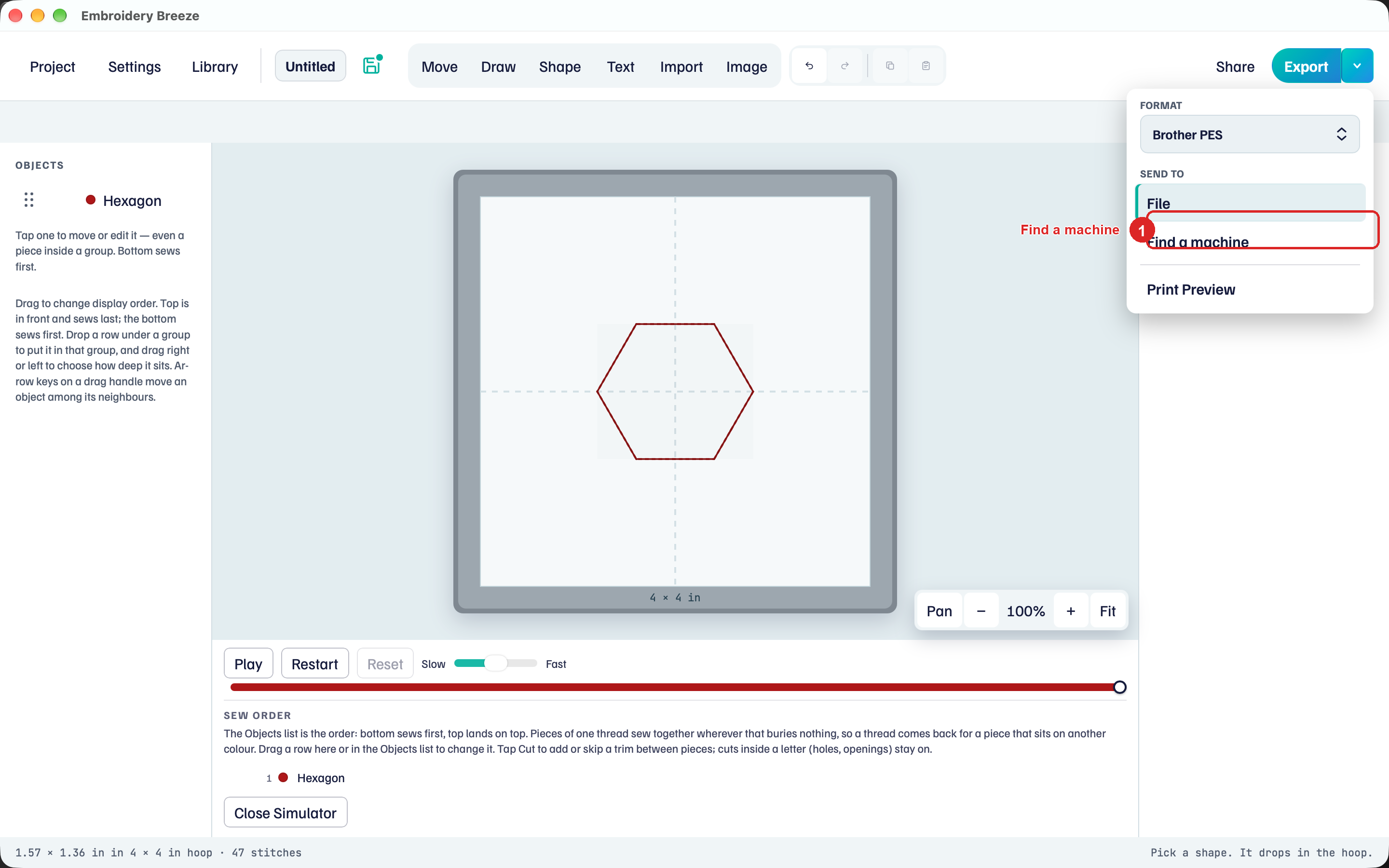
- Click the caret next to Export.
- Click Find a machine.
Scan and add
The Find a machine view is titled Send wirelessly. The hint: Both this device and the machine need to be on the same Wi-Fi.
- Click Scan. Looking… while it searches. Look again after the first scan.
- Or click Add by address. Type the address the machine shows on its wireless screen.
Done returns to the hoop. After a machine is saved, the Export menu shows Manage machines instead of Find a machine.
Send
Each saved machine is a Send to row: the name, then Checking…, Online, or Not found.
- Open the Export caret. Choose Format.
- Under Send to, click the machine row.
- Click Export.
Give the machine a nickname in Manage machines. The hoop still needs stitches before you can send.
USB export is in Export to a USB stick.