
Files
Import a bought design
SummaryPlace a PES, DST, JEF, or other machine file on this hoop and recolor it.
Import adds a bought design to this hoop. It does not replace the project. The stitches stay stitches. You can move, even-scale, rotate, and recolor. There are no nodes, and no outline or fill from paths.
Import the file
Import sits in the top bar, after Text.
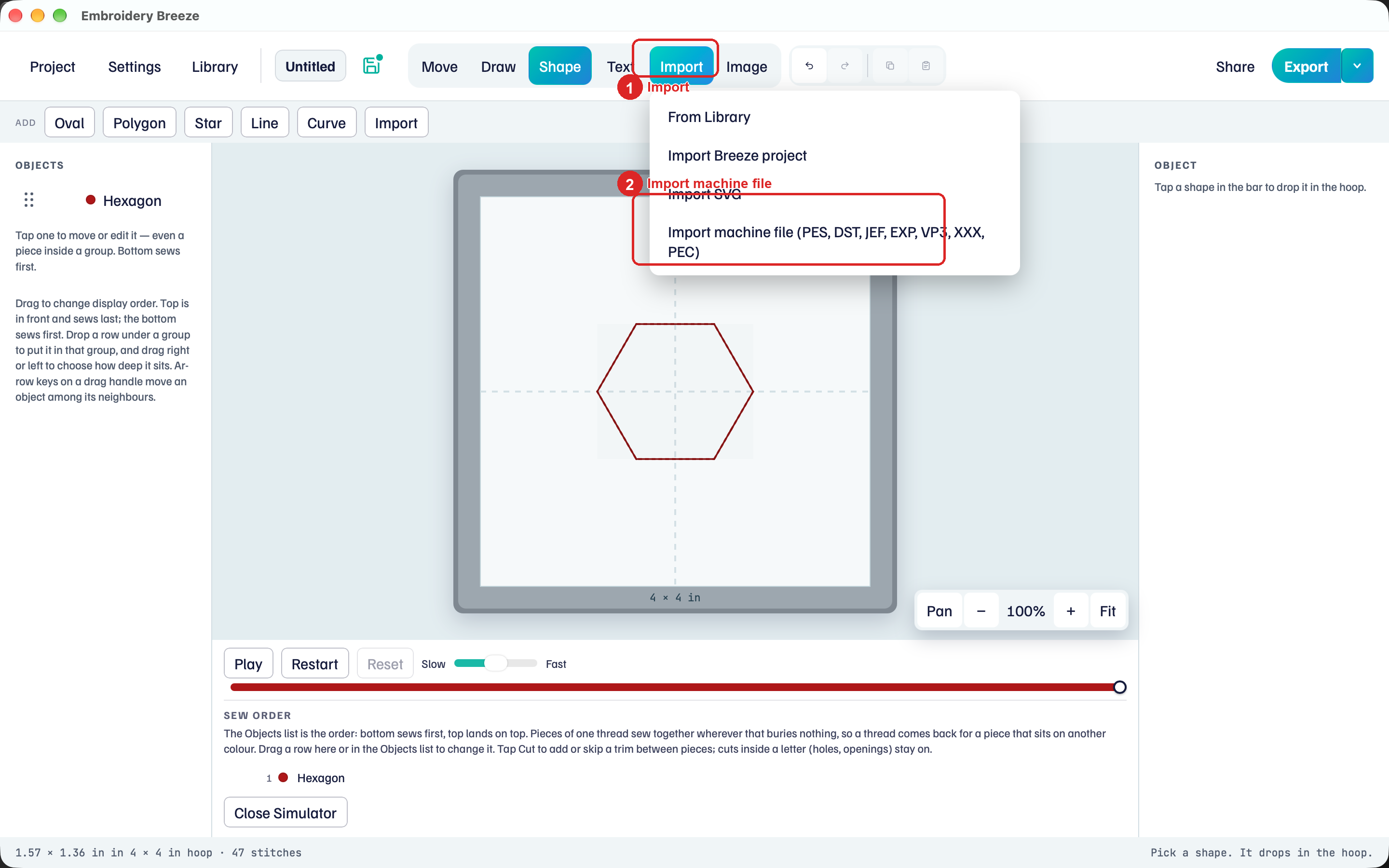
- Click Import.
- Click Import machine file (PES, DST, JEF, EXP, VP3, XXX, PEC).
- Choose the file.
The hoop grows if the design is larger than the current hoop. If you already picked a hoop that is still too small, the status line says it will not fit.
Library Add to hoop does the same job: Library.
On the hoop
The right panel says Machine design. The hint: Bought stitches on this hoop. Move, scale, or rotate. Recolor a thread below. This is not a path, you cannot edit nodes.
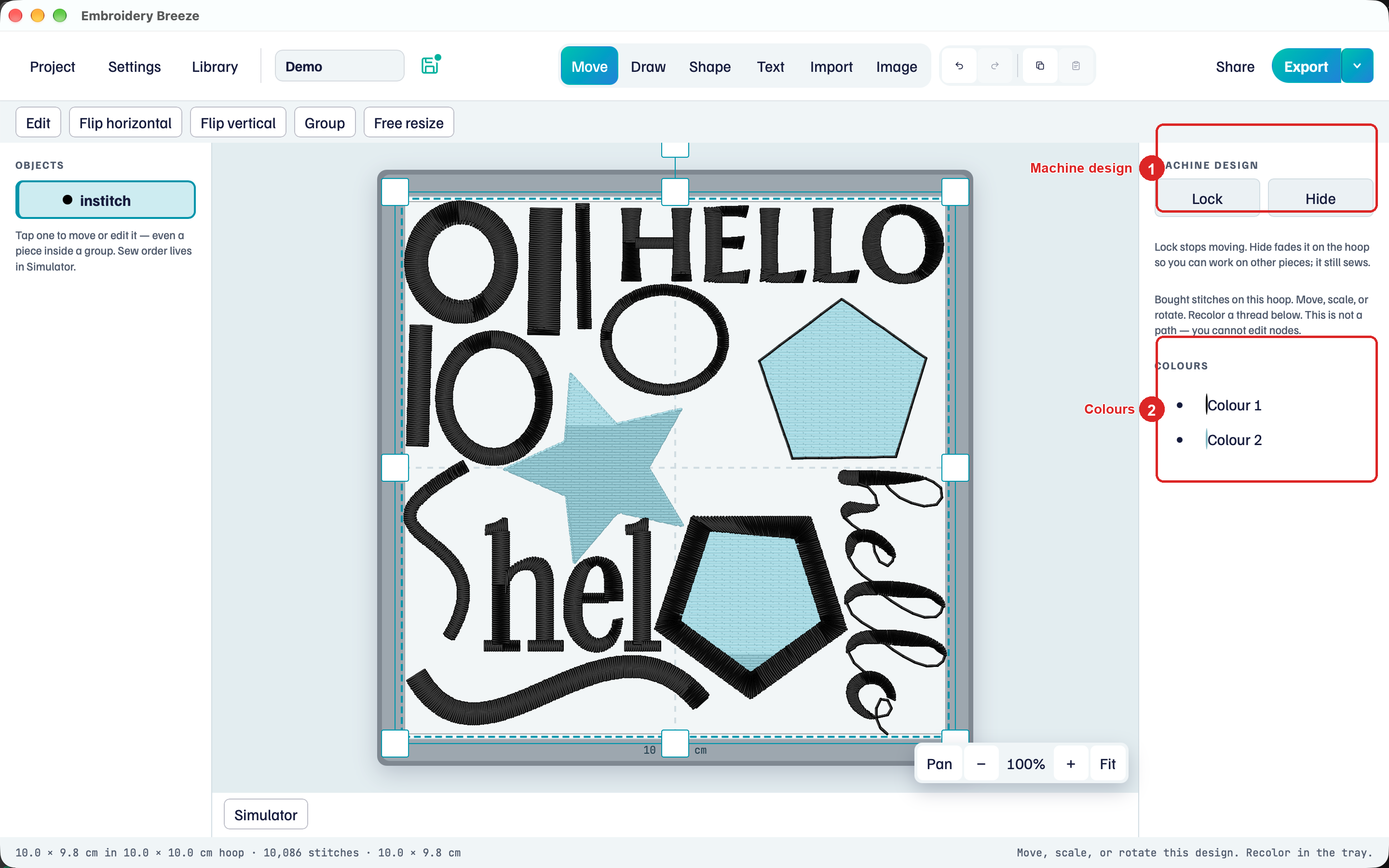
Grab it on the hoop to move, scale (even), or rotate. Free resize is unavailable. Delete at the bottom of the panel takes this design off the hoop. The file on disk stays. The default sew order puts the imported file first (under). Drag Objects if something else should sew first.
Several machine files on one hoop is normal.
Recolor
Colours lists each thread in the design.
- Click a colour in Colours.
- Pick a thread to recolor it.
- Hide color fades those stitches on the hoop. Show color brings them back.
- Delete color removes that colour’s stitches.
The hint: Recolor, hide, or delete it. These stitches stay a bought design, not a shape you can node-edit.
Add a name on top
- Click Text, then Add text. Type a short name.
- Place it above the design.
- In Objects, keep the name on top so it sews last.
Lettering is in Lettering.