
Files
Simulator
SummaryWatch the needle path, fix sew order, and add or skip a trim.
Simulator plays the stitch path the machine will sew. Use it to check order, jumps, and trims before you export.
Simulator sits under the hoop. It is unavailable until the hoop has stitches.
Play
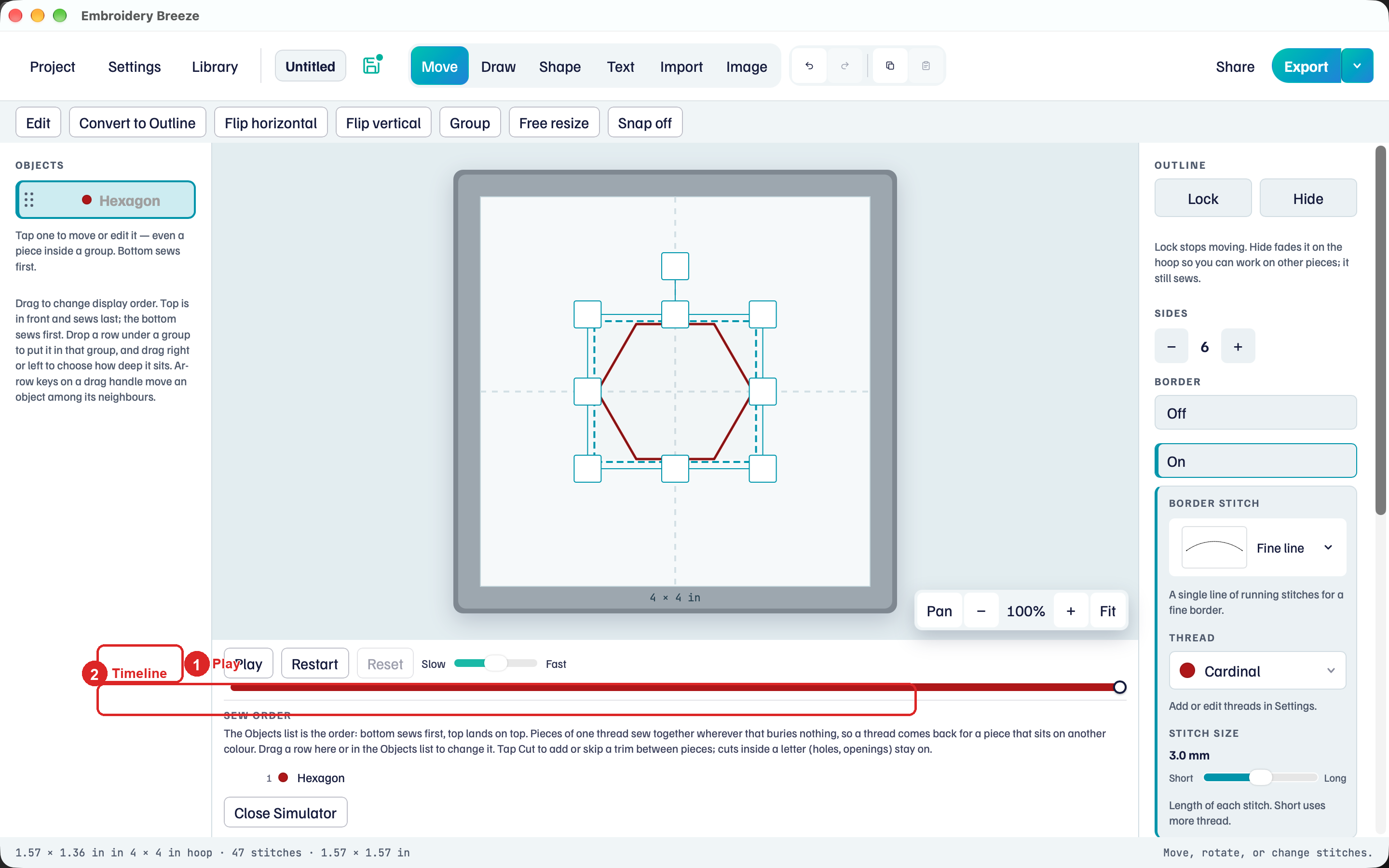
- Click Simulator.
- Click Play. Stitches appear in sew order.
- Pause stops. Restart returns to the start. Reset shows the finished sew-out.
- Drag Slow toward Fast for play speed. Drag the stitch timeline to scrub.
The color bar on the timeline is the thread sequence. Close Simulator returns to the hoop with the same selection.
Sew order
Sew order is the Objects list from the bottom up. Pieces of one thread gather together wherever that buries nothing, so a thread comes back for an object that sits on another colour.
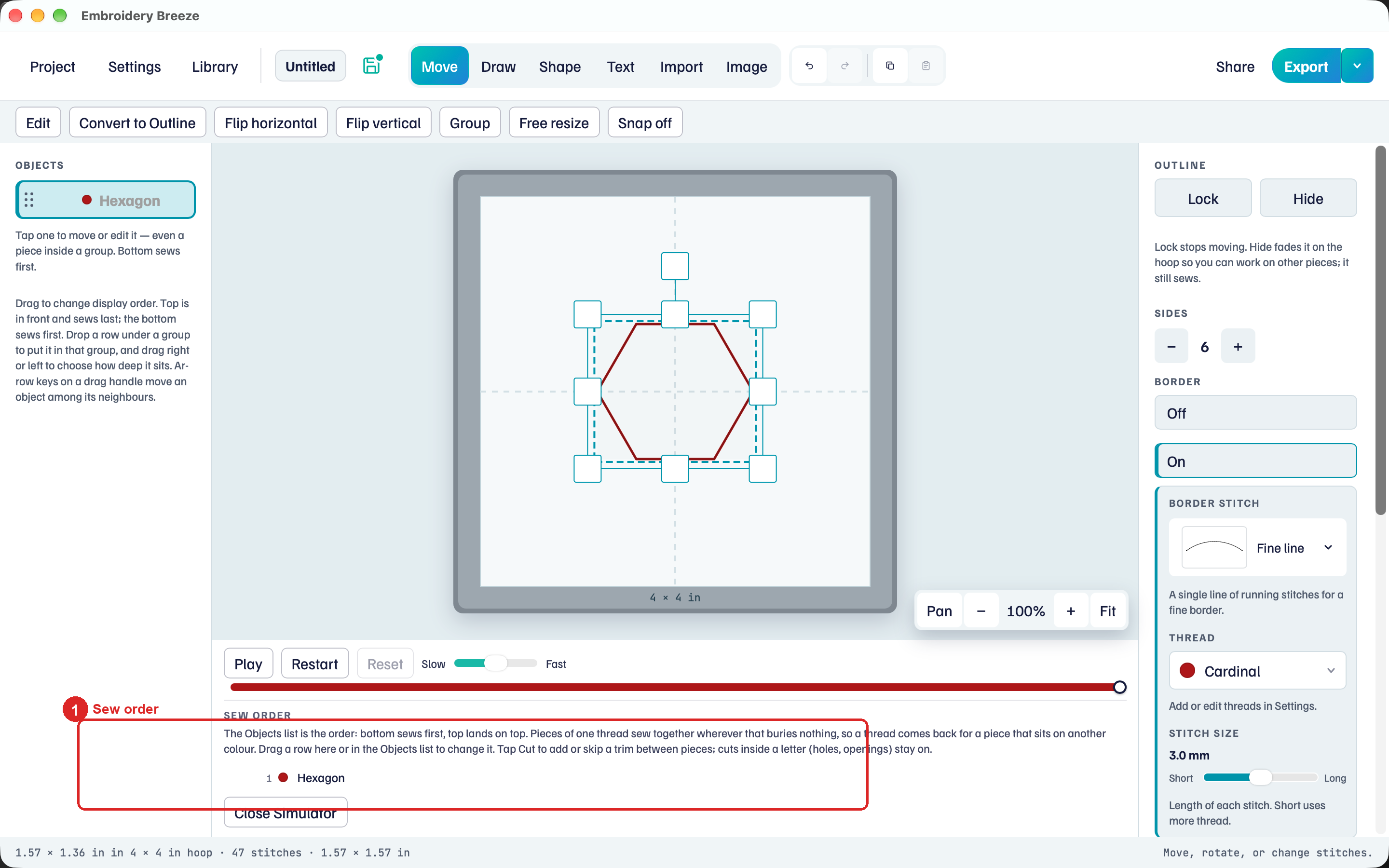
The heading is Sew order. Drag a row here or in Objects to change when it sews. There is no separate Optimize.
The hint: The Objects list is the order: bottom sews first, top lands on top.
Cut
Cut sits on a sew-order row, between two objects of the same thread. A color change always cuts.
- Find the row for the later object.
- Tap Cut to add a trim before it, or tap again to skip that trim.
Cuts inside a letter (holes, openings) stay on.
Quality notes appear on a row when a fill or border is too detailed. Zoom in on the hoop, then change density or pattern size, and play again.
Objects you Hide or Lock still sew: Select, move, and lock.