
Start
Hoop, fabric, and threads
SummaryPick the frame on your machine, the cloth you will sew, and the colors for this design.
Choose a hoop that matches the frame on your machine, and a fabric that matches what you will sew. New pieces use those fabric defaults. Changing fabric later does not change pieces you already placed.
Click Settings in the top bar. The right panel shows hoop, fabric, cloth color, and threads. Click Settings again, or select a piece, to close it.
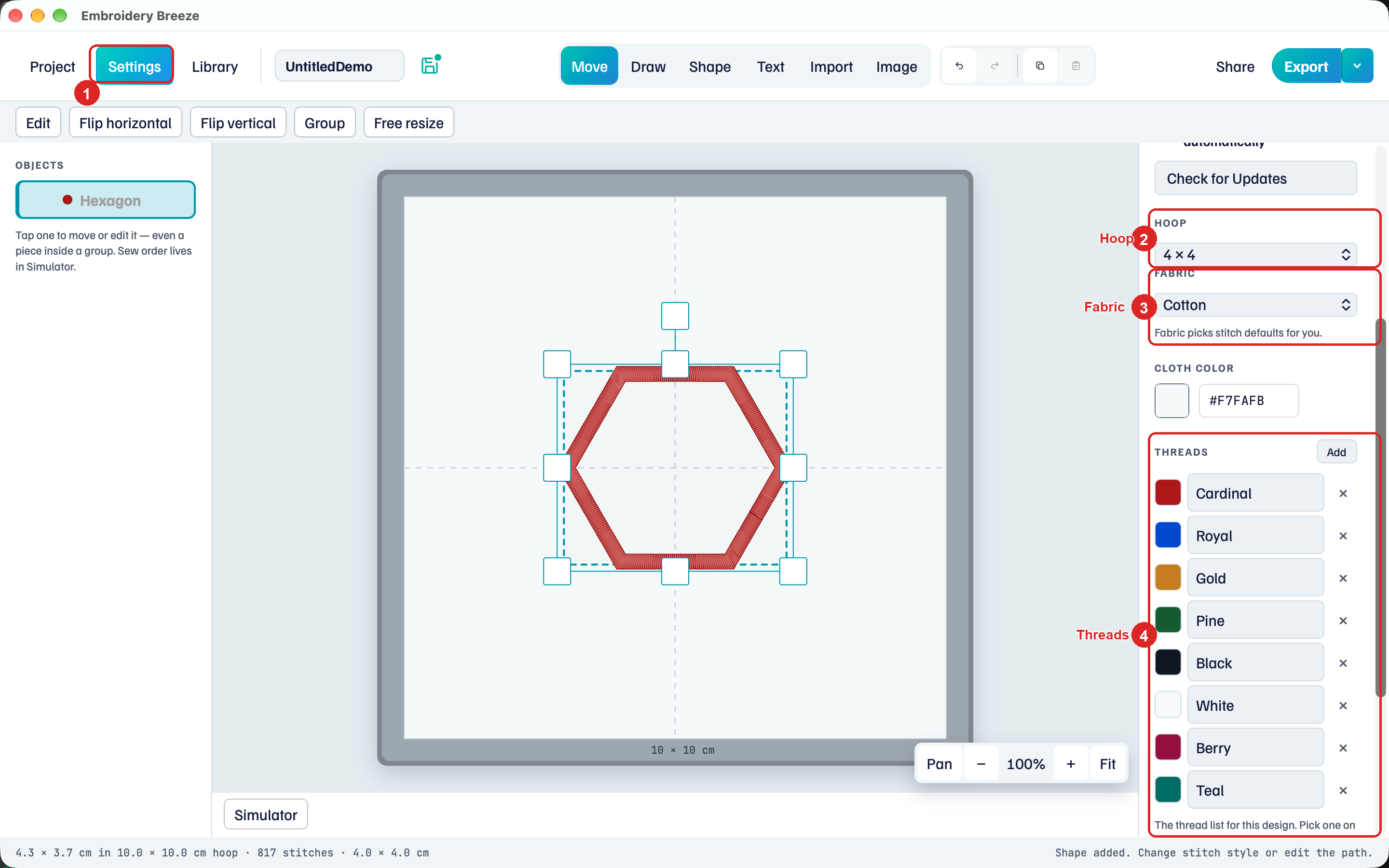
- Settings in the top bar. It stays highlighted while this column is open.
- Hoop. The size of the page. 4 × 4 is the small preset.
- Fabric. Cotton, knit, towel, and so on. This picks stitch defaults for you.
- Threads. The colors for this design. Add makes another.
The picture also shows Cloth color (the hoop background) between fabric and threads. That is preview only. It does not sew.
Hoop
The hoop is the page. Pick the frame you will actually put on the machine.
- Under Hoop units, choose Inches (in), Centimeters (cm), or Millimeters (mm). Inches is the default. Switching units keeps the same physical size.
- Pick a preset. With inches: 4 in x 4 in, 5 in x 7 in, or 6 in x 10 in.
- Or choose Custom and type width and height. The hoop can be 40 to 400 mm on a side.
The status line under the hoop repeats the size, with the fabric beside it. In centimeters that size reads 10 cm x 10 cm, which is the same 4 in x 4 in preset.
If you import a design larger than this hoop, the hoop grows to the smallest preset that fits, or the status line says it will not fit.
Fabric
Under Fabric, pick the cloth you will sew:
- Cotton
- Knit / t-shirt
- Terry / towel
- Fleece
- Denim
- Linen
- Leather / vinyl
Fabric sets density, underlay, and pull for new pieces. You can still change those on a piece. Auto underlay follows the fabric you picked.
Threads
This list is the colors for this design. Match them to the cones on your machine.
- Click Add to append a color.
- Click the swatch to change the color. Type a name in the field (the defaults are names like Cardinal and Royal).
- Select a shape, then click a thread in this list to sew with it.
- Click × to remove a thread you are not using.
A new shape uses the selected piece’s thread if it has one, otherwise the first thread in the list. Fill and border can each have their own thread. Pick those under Fill and Border on the piece.
When the design is too big
Scale a piece until it sticks out of the hoop. The status line says the stitch size is too big for this hoop, and shows the stitch count.
Pick a larger hoop in Settings, or scale the piece down. Export still writes the file. The machine will refuse a design that does not fit its frame.
Next: The Objects list is both what is on the hoop and the order it sews.