
Design
Snap and the grid
SummaryLine objects up with neighbors, the hoop, and the grid, or turn Snap off to drag freely.
Snap pulls a drag toward nearby objects, the hoop, and the grid (when the grid is on). It is for placing. It does not change how stitches generate.
Snap on the tool row
Select an object. The tool row shows Snap or Snap off.
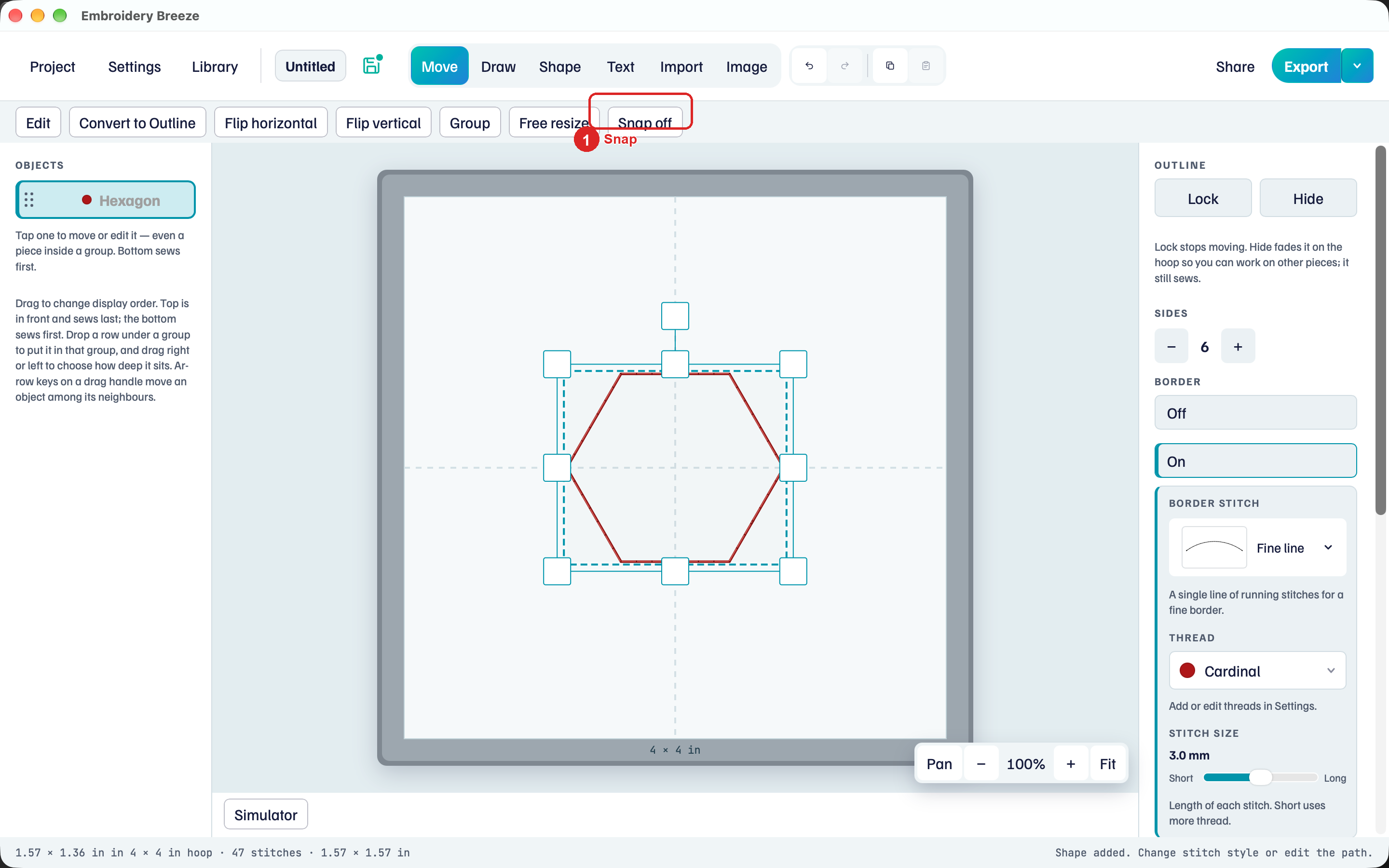
Click it to toggle.
- Snap (highlighted): a drag pulls toward nearby objects, the hoop, and the grid.
- Snap off: drag freely.
The status line repeats the same idea.
Neighbor snap only pulls when the objects share a band on the other axis, so a leaf does not jump sideways to a stem far above it. Hoop and grid use a wider magnet.
Turn on the grid
- Click Settings.
- Under Grid, choose Lines or Dots. Off hides the grid.
- Drag Tight toward Loose to change spacing.
The grid is a visual guide. Snap uses it only when Grid is not Off and Snap is on.
Line two objects up
- Place two ovals (or any shapes) so they almost touch.
- Leave Snap on.
- Drag until they share an edge or a center. Release.
If the drag keeps jumping to the wrong neighbor, click Snap off, place by eye, then turn Snap back on for the next move.
Fit, +, and − only change the view. They do not move objects or change snap distance on the hoop.