
Files
Library
SummaryBrowse .breeze files, .breezefont files, and machine files like Photos.
Library in the top bar browses this computer: .breeze projects, .breezefont files, and machine files. Search, click a thumbnail, then Open or Import.
The grid
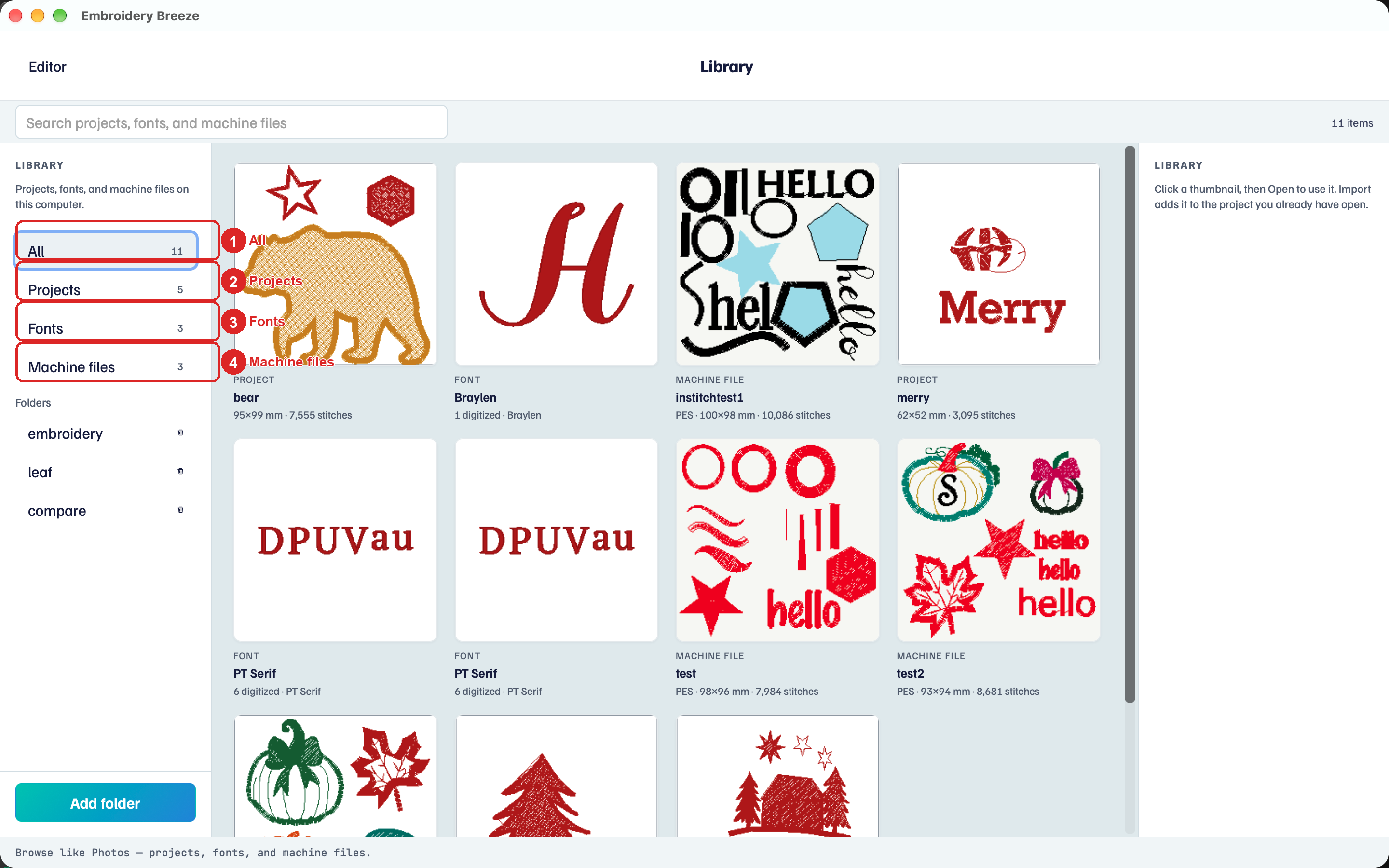
- Click Library.
- Use the left list: All, Projects, Fonts, or Machine files.
- Type in Search to filter by name.
- Click Add folder to remember a folder of files.
Digitized fonts already on this computer show up without picking a folder. Saving a project also remembers its folder.
Editor on the left returns to the hoop.
A .breeze file
Click a project thumbnail. The right panel shows a larger preview, Location, Only this folder, and Show file.
- Open replaces this project. Unsaved changes get the same prompt as Project → New.
- Import adds that file’s objects to this hoop.
Project → From Library opens Library to Open. Import → From Library opens it to Import. The selected thumbnail is the item those buttons use.
A machine file
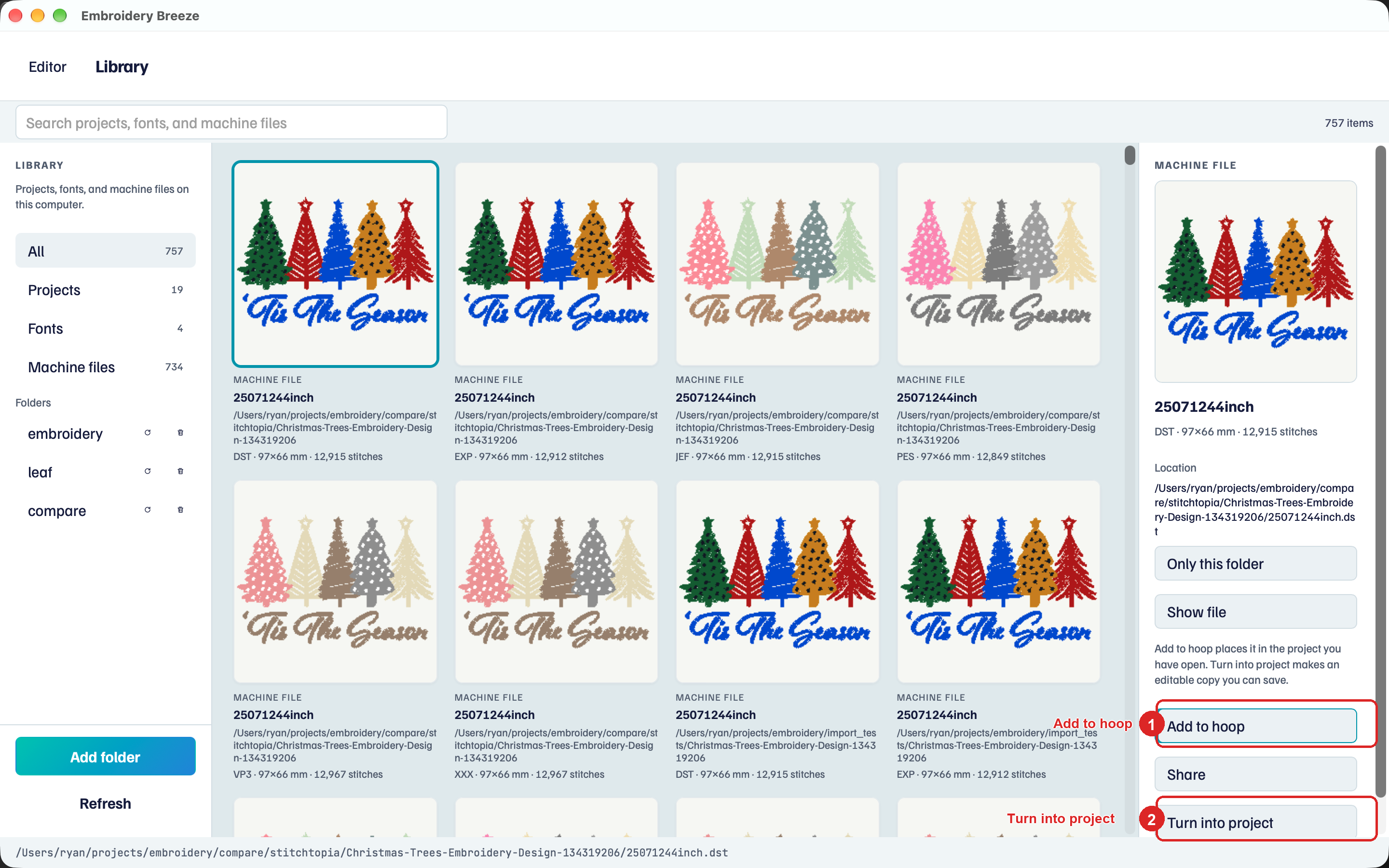
- Add to hoop places the stitches in the project you have open.
- Turn into project writes another machine format you can save.
A .breezefont file
- Open goes to the font digitizer.
- Import adds the font to this project so you can type with it.
Share on a card posts the .breeze file or .breezefont file when this computer is connected: Share.